Guides / 06
Export your files
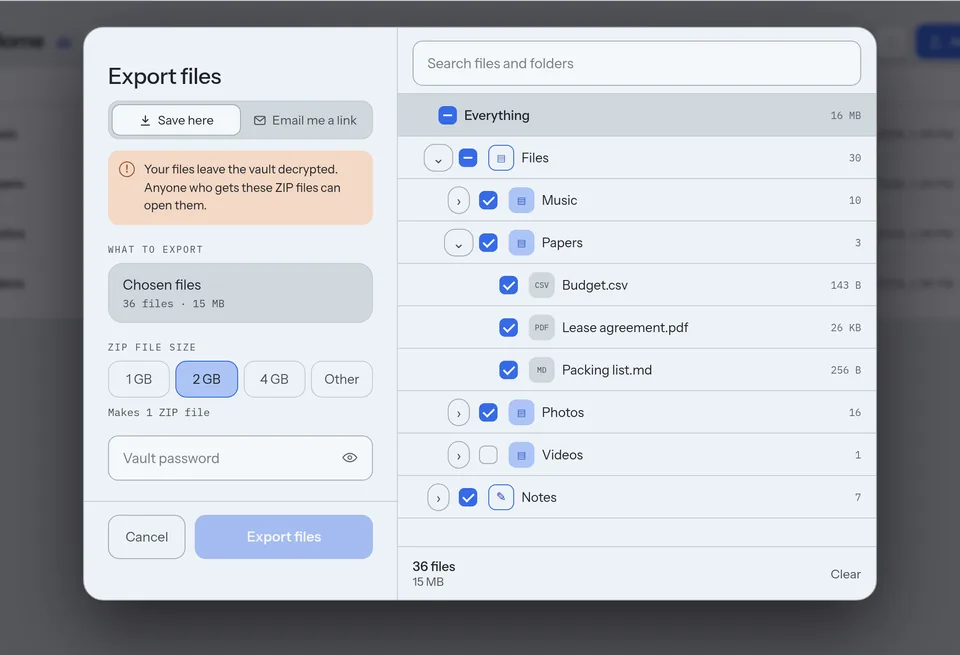
Export files decrypts a vault's files on your device and saves them as normal ZIP files, with their folders. Do it for each vault you want to take out.
06Guide
Steps
- Open the vault, open its menu (⋮) and choose Export, then Export files.
- Choose Save here.
- Everything in the vault goes, apart from the trash. To leave something out, untick it in the tree. On Android the tree opens from What to export.
- Pick the ZIP file size: 1, 2 or 4 GB, or Other for 1 to 50 GB. The sheet says how many ZIP files it makes.
- Type the vault password and choose Export files. On Android, pick the folder the ZIP files go into.
- The export goes on after the window closes. A card in the vault shows how far it is. In the web app, keep the tab open until it ends.
Good to know
- The ZIP files are not encrypted. Anyone who gets them can open them, so keep them somewhere safe.
- Email me a link in the same sheet sends a link to your account's email. Open it on a computer within 7 days and type the vault password. Emailed links in the vault menu ends a link sooner.
- For an encrypted backup, choose Export vault under Export instead. Its .stonesafe files open only with the vault's password or recovery key.
- Leaving Stonesafe? Export every vault, check that the ZIP files open, then write to support from your account's email to delete the account.
Next guide: Keep a vault off your phone